Skip to content
Introtrace — Resource Diagnostics

Investigate blocked analytics.
Test recovery in your browser.

Use Introtrace alongside Chrome DevTools to investigate analytics loading failures, test supported recovery without editing your site's HTML, and inspect the resulting relay requests.

No Introtrace account required. Enable separately for each site you are authorised to test.

The popup shows relay attempts. Use DevTools for the broader view of blocked resources.

From failure to a controlled test

Find the request. Follow the recovery.

Keep the original failure and the retry separate so you can see what changed.

Identify the failure

Use DevTools Network to find the failed script or measurement request. Compare blocking off and on before attributing the failure to an ad blocker.

Inspect the retry

For relay requests the extension detects, inspect the original destination when available, method, relay and upstream HTTP statuses, and outcome.

Verify the event

Check that the recovered script runs and the expected event appears in the right analytics property. HTTP success alone cannot establish either.

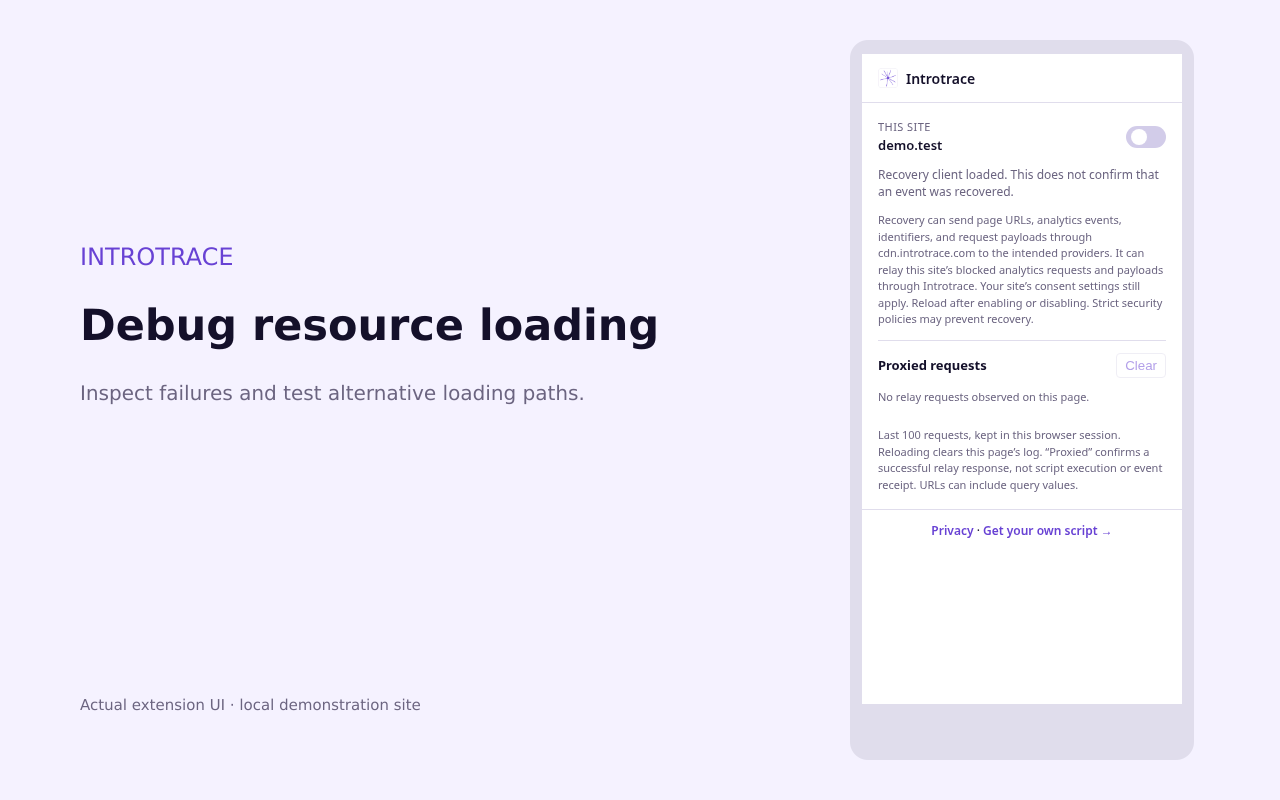
Introtrace Resource Diagnostics popup on demo.test, with per-site recovery controls and an empty Proxied requests log.
Actual store-build UI on a local demonstration site. This example has no relay entries; it is not evidence of provider delivery.

Read the popup outcomes

Pending
A relay response was identified; the request has not finished.
Proxied
Relay and upstream HTTP transport succeeded with the required diagnostic metadata.
Failed
A detected relay request failed or returned unsuccessful or mismatched HTTP statuses.
Unverified
A relay response completed without enough metadata to confirm its destination and upstream outcome.

Requests that fail before a relay-identifying response arrives are omitted. Logs retain the last 100 entries per tab in this browser session and clear on full-page reload. Save your observations before the next run.

Chrome testing walkthrough

Compare three runs of the same action

These are instructions for your own test, not recorded results from a store installation. Keep the page, action, consent choice and tag configuration unchanged.

Use a test page and test property where possible. Record your Chrome version, blocker and filter settings, expected event and consent state. Install your blocker separately. If Introtrace is already installed on the website, use a test copy where site-level recovery can be disabled for the first two runs.

01 / BASELINE

Blocking off. Recovery off.

Open DevTools → Network before reloading. Keep Introtrace disabled for the site and turn off your blocker for this test. Perform one action and confirm the expected event in your analytics tool.

02 / REPRODUCE

Blocking on. Recovery off.

Enable your blocker, reload and repeat the same action with the same consent choice. Record the failed request URL and error in DevTools. Check whether the failure is a script download or an event request.

03 / COMPARE

Blocking on. Recovery on.

Open Introtrace, read and accept the transmission disclosure, enable the site and grant access. Reload, repeat the action and inspect relay attempts in the popup. Confirm the event and its parameters in your analytics tool.

For each run, record the original request outcome, any relay outcome, script execution and provider receipt separately. If the baseline fails, fix the installation first. If you cannot reproduce a block, this test has not established a need for recovery.

Repeat with consent declined and check that collection follows the intended consent behaviour. Disable extension recovery and reload when finished. Site CSP or blocker rules can prevent recovery, and unsupported requests may remain blocked.

The linked checklist includes separately recorded Brave results. Those results did not test this Chrome extension.


Choose the right tool for the next step

Chrome extension questions

Does the extension list everything my ad blocker stopped?

The current popup lists Introtrace relay requests, not every blocked resource. Use Chrome DevTools Network to inspect original failures. An empty relay log does not mean nothing was blocked. A loading failure alone does not identify which extension or browser policy caused it.

Do I need an account or a script installed on my site?

No Introtrace account or site HTML change is required for the browser test. Install the extension, enable it for a site you are authorised to test, accept the transmission disclosure and site permission, and reload. Install an ad blocker separately if you want to reproduce its behaviour.

What does enabling recovery send through Introtrace?

Diagnostic retries can send page URLs, events, identifiers and request payloads through Introtrace to the intended providers. Recovered third-party scripts can execute in the website context. Preserve the site's consent controls and use test data where possible.

Does a Proxied result mean my analytics received the event?

It confirms successful relay and upstream HTTP transport when the required diagnostics are available. It does not prove script execution, correct attribution, or event receipt in your analytics property. Verify those separately in GA4 DebugView or your provider's event view.

Will this recover analytics for everyone visiting my site?

The extension enables testing in your own browser. To test recovery for site visitors, install Introtrace on the website separately. Browser settings, filter lists, site security policies and integration support can still prevent recovery.